
Spatial browsing
A tab strip answers one question: which pages are open? Glub also preserves where a page came from and where it belongs in the current task.
Pages become tiles
Section titled “Pages become tiles”Each live webpage occupies a tile. Several tiles can remain visible at once, and the active tile has a stronger Frost-colored border.
Following a link can place its destination:
| Key | Position |
|---|---|
| h | Left of the source |
| j | Below the source |
| k | Above the source |
| l | Right of the source |
| Enter | In the current tile |
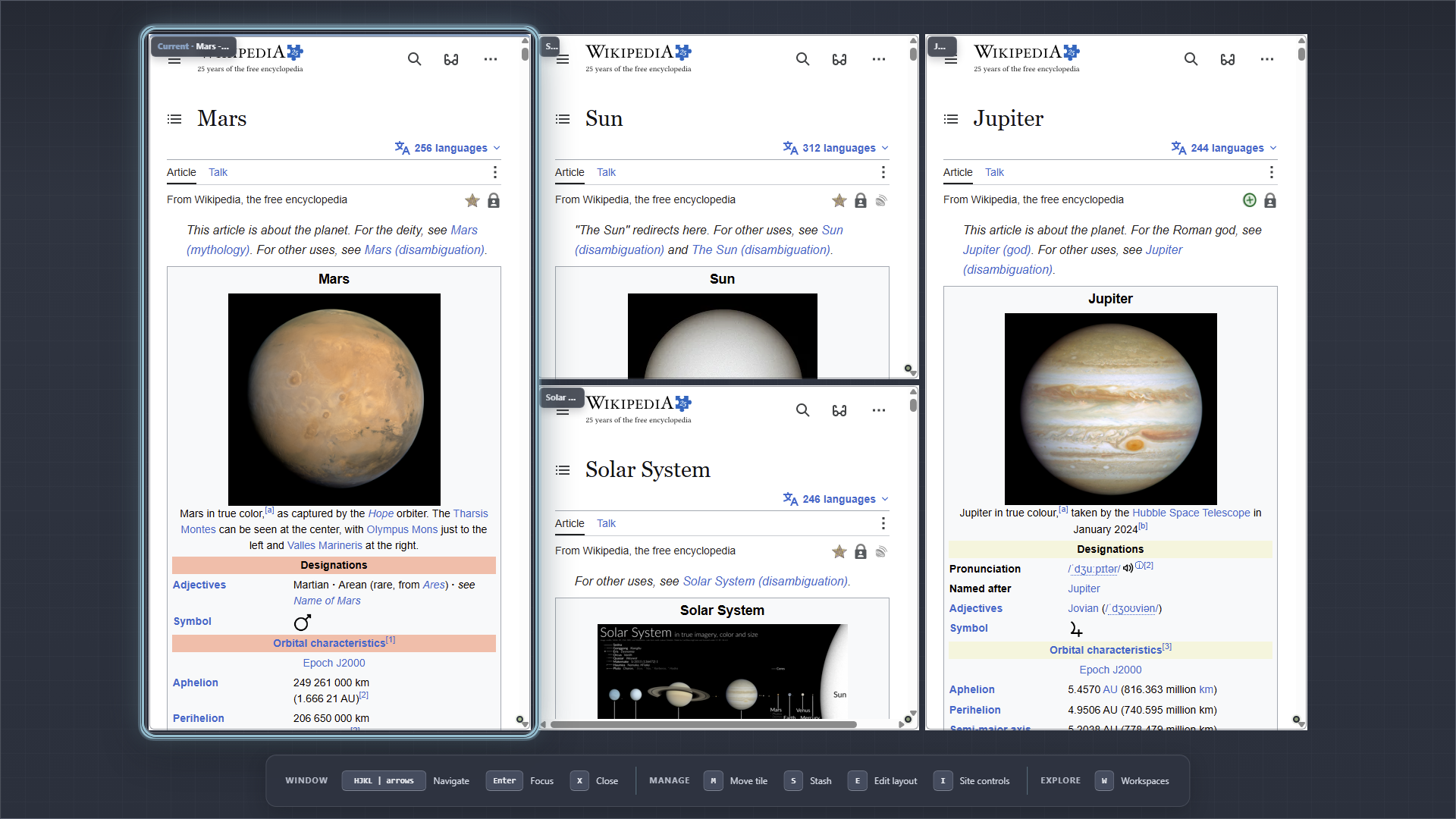
A branch remains beside its source instead of becoming another compressed tab.
Branch from the page you are reading
Section titled “Branch from the page you are reading”- Press F to label links.
- Type a displayed label.
- Press HJKL for a directional tile, or Enter to navigate in place.
Press lowercase f when you want to label page actions such as buttons, checkboxes, and text fields.
Navigate the canvas
Section titled “Navigate the canvas”Use Alt + HJKL to focus a neighboring tile while browsing. Glub glides the selected tile into view rather than snapping the whole canvas.
Additional tile commands:
- Alt + W closes the active tile.
- Alt + Enter toggles tile fullscreen.
- Alt + Shift + HJKL resizes the active tile.
- Ctrl + Alt + HJKL swaps it with a neighbor.
- Alt + = resets tile sizes.
Window Overview
Section titled “Window Overview”Press W to zoom out. Window Overview is the management surface for the current Workspace: focus, move, resize, stash, close, mark, or inspect a page without putting permanent controls around normal browsing.
Site permissions and protection remain hidden during browsing. In Window Overview, select a tile and press i to open Site Controls.